Data Generation
Uses C# to generate sine tables at compile time, then uses them to move an 8x8 sprite around the screen. There’s no data file and no table typed out by hand: the values are calculated while the program is built.
How to run it
Open the folder in VSCode and press F5. A sprite moves around the screen in a loop.
Planning the tables
Each table has 256 entries, so an 8 bit index wraps around on its own.
- X needs values from 0 to 320 - 8, so the sprite doesn’t move off the screen. That’s more than a byte, so the values are 16 bit. To keep reading them fast, they’re split into a table of low bytes and a table of high bytes.
- Y needs values from 0 to 240 - 8, so a single table of bytes is enough.
Generating the tables
Two C# methods at the end of src/main.bmasm return the values:
IEnumerable<byte> GetYData()
{
    // return data between 0 and 240-8.
    for(var i = 0; i < 256; i++)
    {
        yield return (byte)((Math.Sin((i / 256.0) * 2.0 * Math.PI) + 1) * (240-8) * 0.5);
    }
}
GetXData() is the same, but returns ushort values between 0 and 320 - 8.
Their output is passed to the BM library, which writes the data: BM.Bytes for the Y table, and BM.LowBytes and BM.HighBytes to split the X values.
.align $100
.ydata:
    BM.Bytes(GetYData());
.xdata_low:
    var xdata = GetXData().ToArray();
    BM.LowBytes(xdata);
.xdata_high:
    BM.HighBytes(xdata);
The .align $100 puts the tables on a page boundary, so lda ydata, x never crosses a page and never takes the extra cycle.
Variables
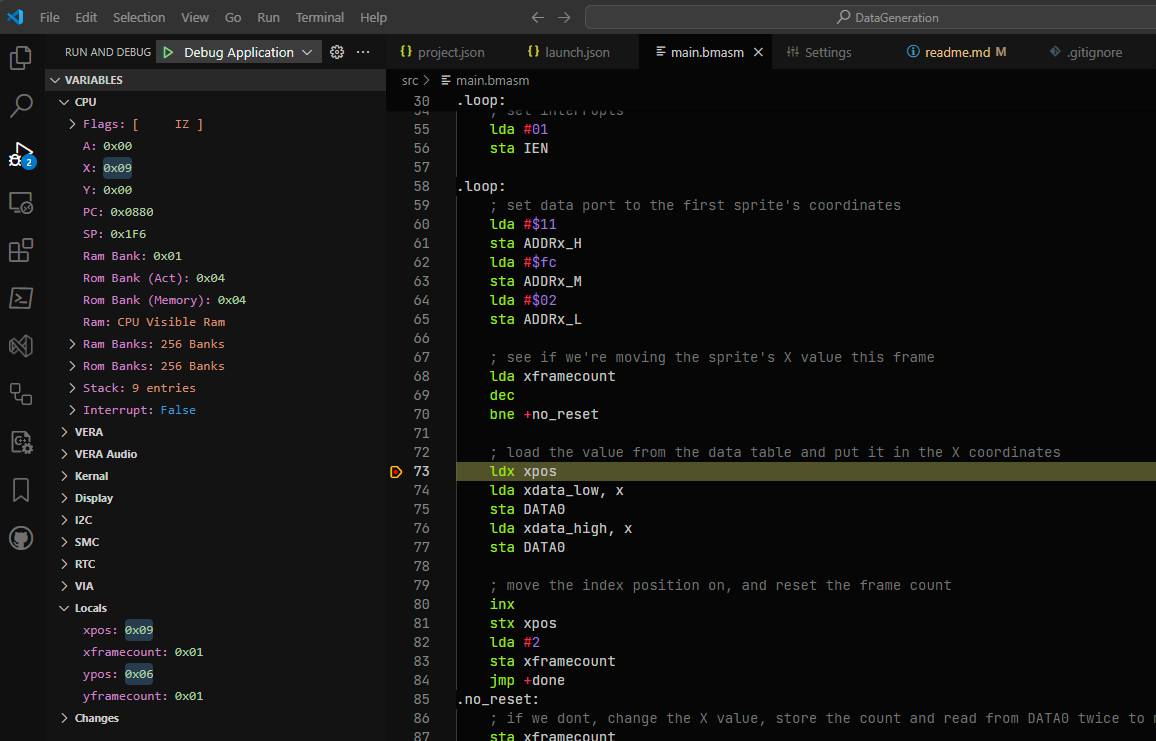
After the data, four variables are defined with .var:
.var byte xpos = 0
.var byte xframecount = 1
.var byte ypos = 0
.var byte yframecount = 1
.var reserves the space and stores the initial value in the output file, so it can only be used in a segment that writes a file. In one that doesn’t, use .padvar, which reserves the space without a value.
Giving a variable a type (with .var, .constvar or .padvar) means the debugger knows how to show it. They appear under Locals in the variables view in VSCode while you’re debugging.